This site uses third‑party cookies to support analytics, store preferences, and provide relevant content and advertising. You can manage your preferences, including limiting the sale or sharing of personal information, at any time.

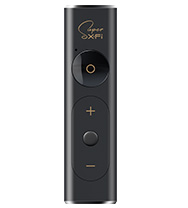
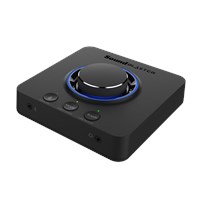
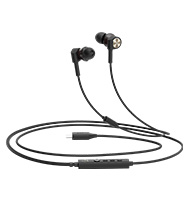
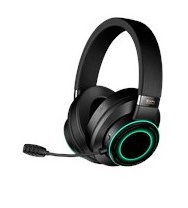
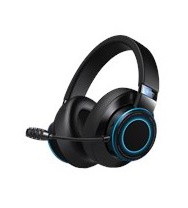
Android Phones
For Android phone1 users, you will require:
- Android ver. 7.0 and later
- a USB C-to-C cable (provided)2
1 For some Android phones, you might need to switch on "OTG" on your phone to allow your device to detect the Creative SXFI AMP.
2 For Android phones with a USB Micro-B connector, use a USB Micro-B OTG adapter and the provided USB C-to-C cable to connect. Make sure that the adapter is marked “OTG” as the phone needs the signaling from this type of adapter to switch itself into USB host mode.
Step 1: Connect SXFI AMP with your Android Phone
Open the SXFI App.
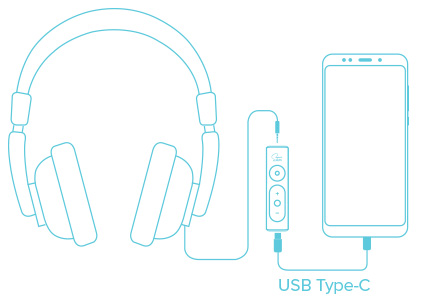
Connect your Android phone to the SXFI AMP with the USB C-to-C cable1 provided.
Step 2: Connect SXFI AMP with your headphones
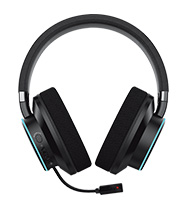
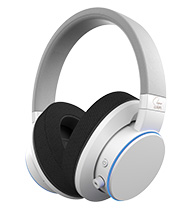
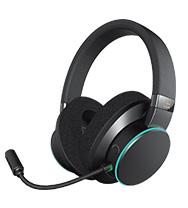
Connect your preferred headphones3 to the SXFI AMP, select the headphone profile via the ‘Headphone Selection' tab in the SXFI app.
Step 3: Set-up Complete
3 If you are using a headphone that is not listed, try the “Unknown In-Ear/Headphone” first, and if that does not work as well, please try out each headphone selection in the list to find one that works better.